 |
IPSDK 4.2
IPSDK : Image Processing Software Development Kit
|
|
IPSDK 4.2
IPSDK : Image Processing Software Development Kit
|
The Automatic Object Segmentation module uses the Segment Anything Model (SAM) [1] developed by Meta to automatically detect and segment objects in images.
After validation, the module outputs a label image of the segmentation generated by SAM.
This module is available in the Machine Learning (AI) tools section inside the toolbar.
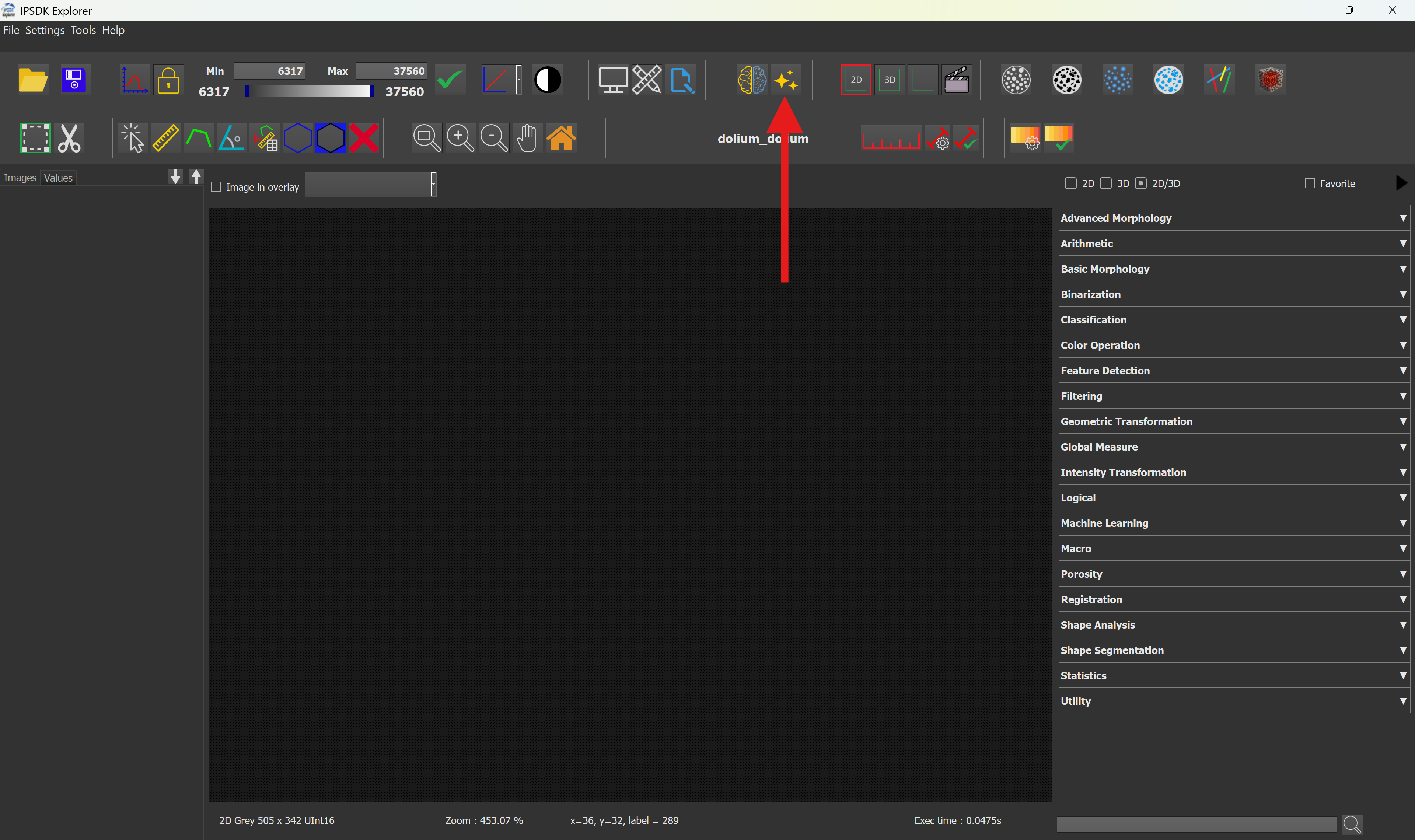
When clicking on the module button, a configuration window opens, allowing to adjust several segmentation parameters before launching the process.
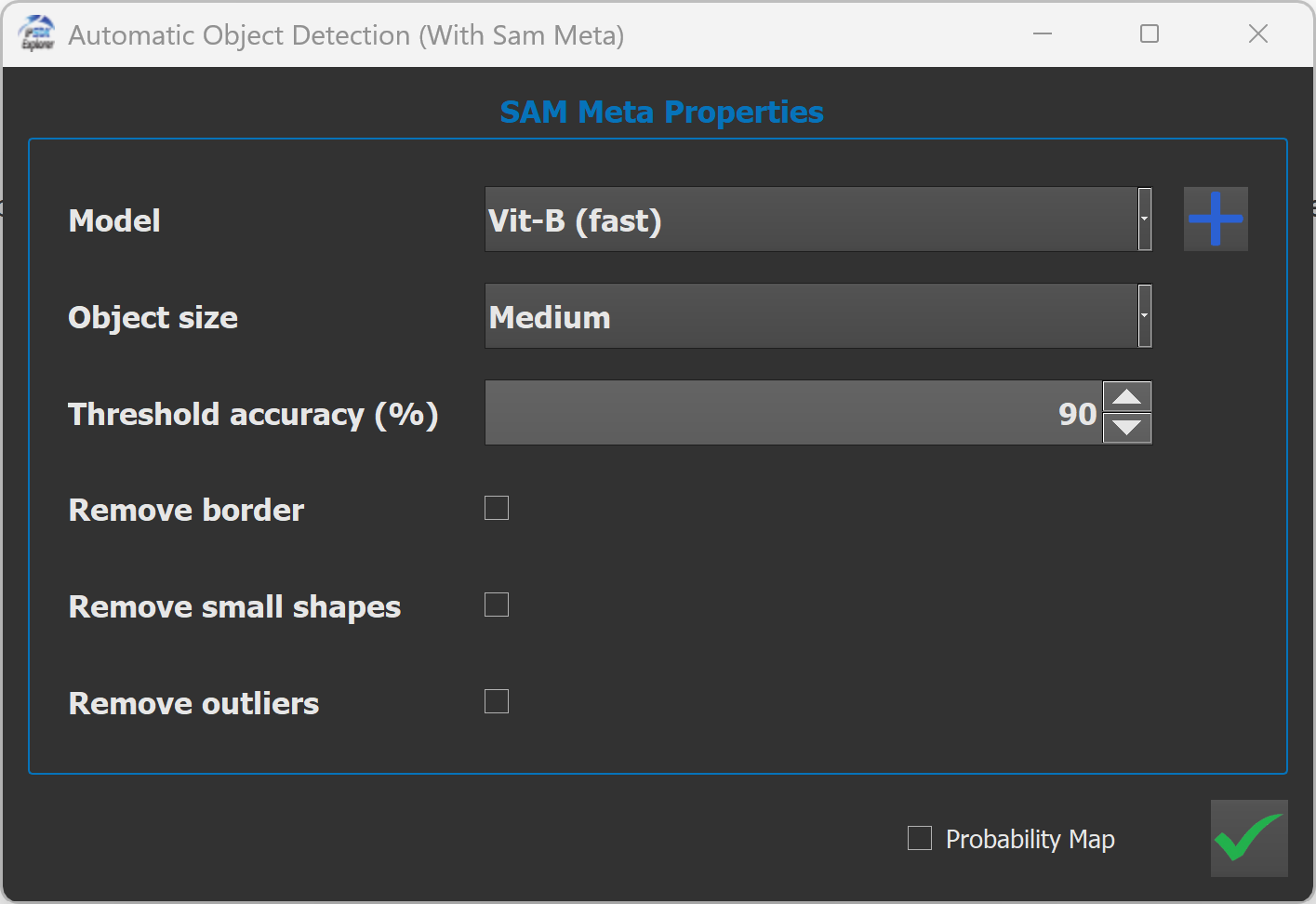
A dropdown menu allows to select an installed SAM model or download additional ones.
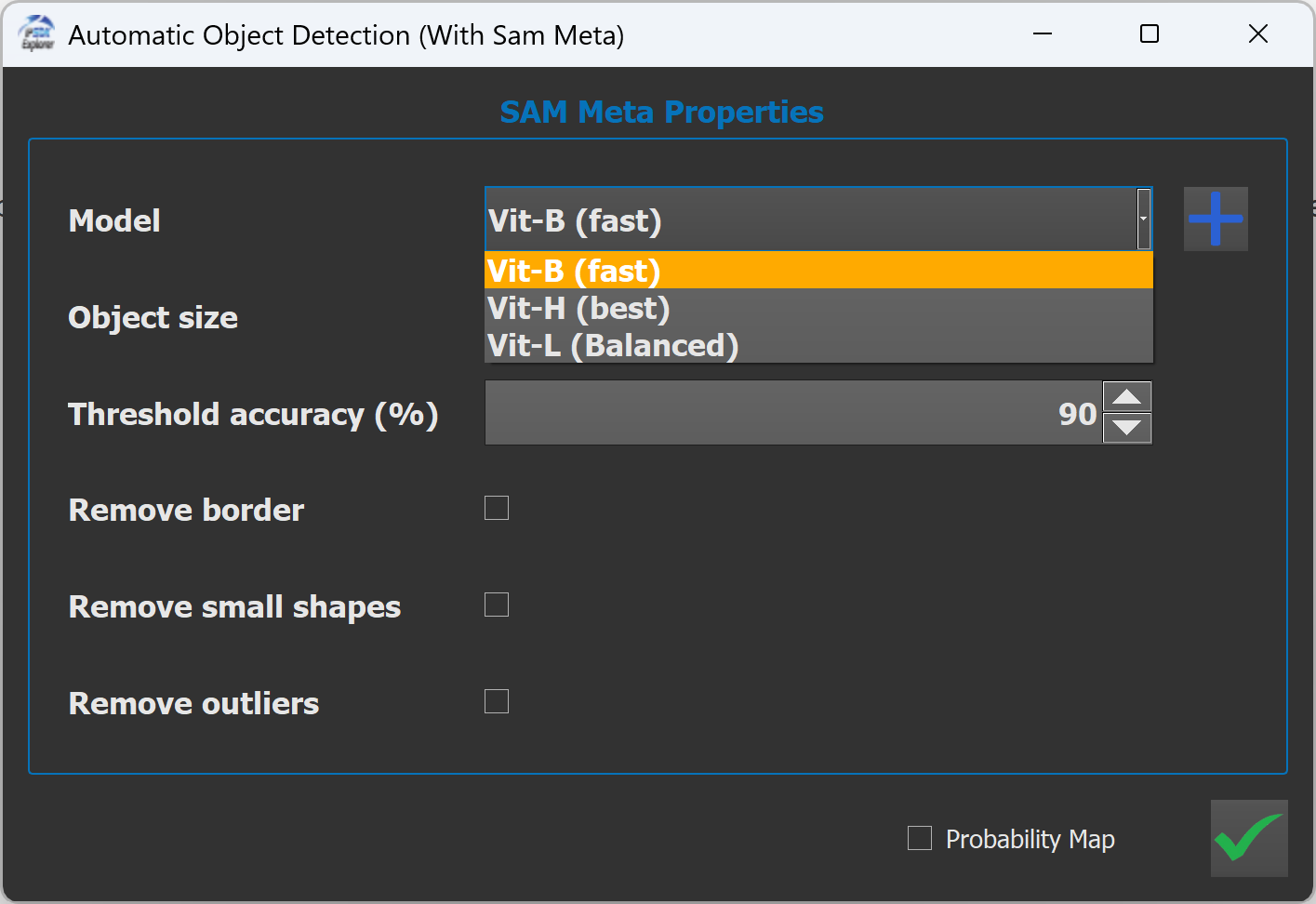
Available models are:
The vit-b model is already installed and usable, while other models needs to be downloaded first to be available.


These models differ mainly in network size, accuracy, and computational cost.
| Model | Accuracy | Speed | Memory Usage | Recommended Use |
|---|---|---|---|---|
| SAM VIT-B | Good | Fast | Low | Quick segmentation, limited hardware |
| SAM VIT-L | Very good | Medium | Medium | Balanced performance |
| SAM VIT-H | Best | Slow | High | High-quality segmentation |
This option allows to control the expected size of objects to segment.

This parameter adjusts the internal sampling strategy of SAM to focus on objects of a given scale.
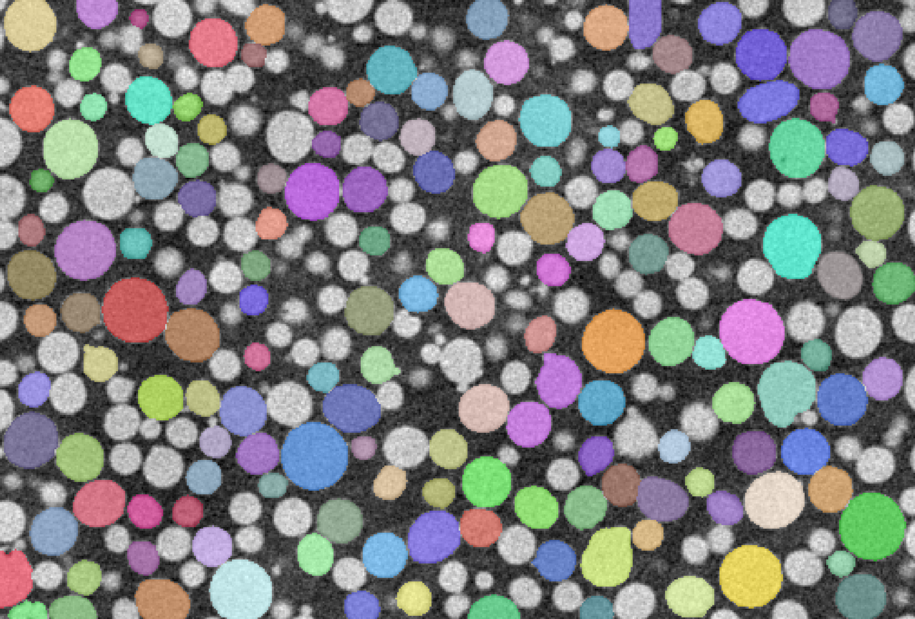
Here is an example detecting small objects:

As we can see, the segmentation includes small objects to the result image.
In contrast, when focusing on large object detection, small objects are excluded from the segmentation results.
Here's, an example while detecting very large objects:
The Threshold Accuracy parameter defines the minimum confidence required for a predicted mask to be accepted.
Its value can be defined between 1 and 99.
Higher values produce fewer but more reliable segments, while lower values allow more detections but may introduce noise or uncertain regions.
Here's the recommended usage for basic processing.
| Threshold | Behavior |
|---|---|
| 90-80 (High) | Cleaner segmentation & Fewer false positives |
| 80-50 (Medium)) | Balanced detection |
| 50-10 (Low) | Detection of faint or low-contrast objects |
When enabled, the remove border parameter removes all segmented labels that touch the image borders.
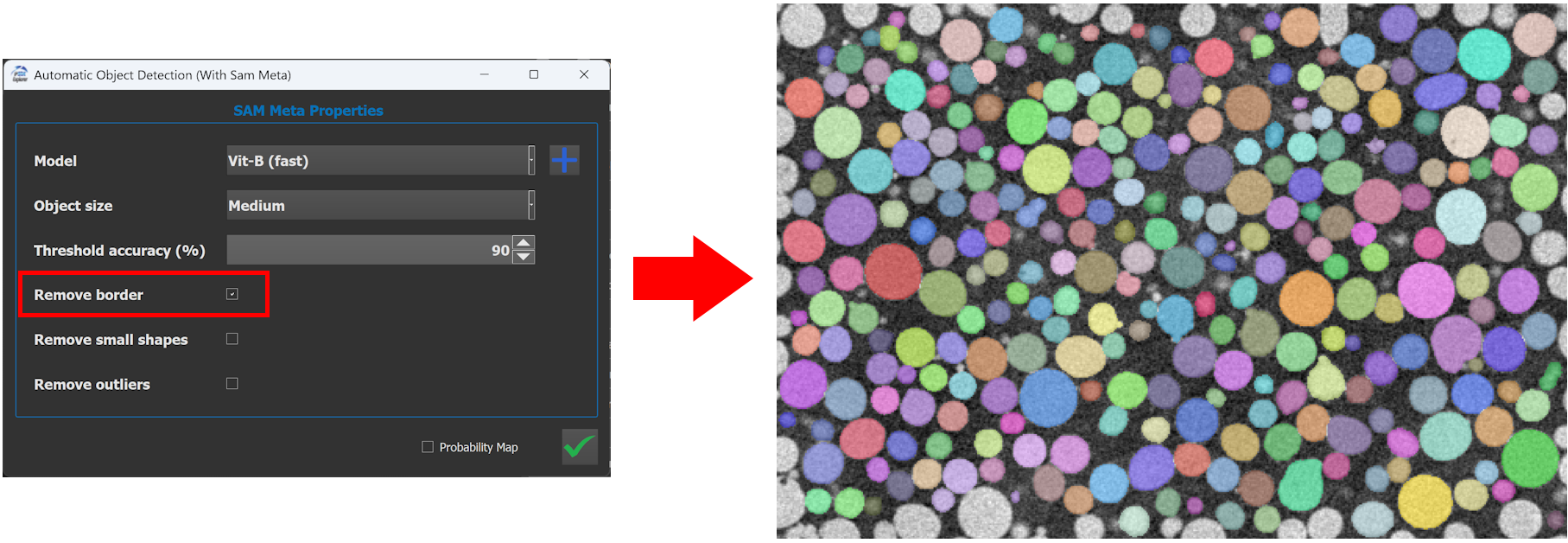
This option is useful when:
When enabled, the remove small shapes parameter removes segmented objects below a minimum size.
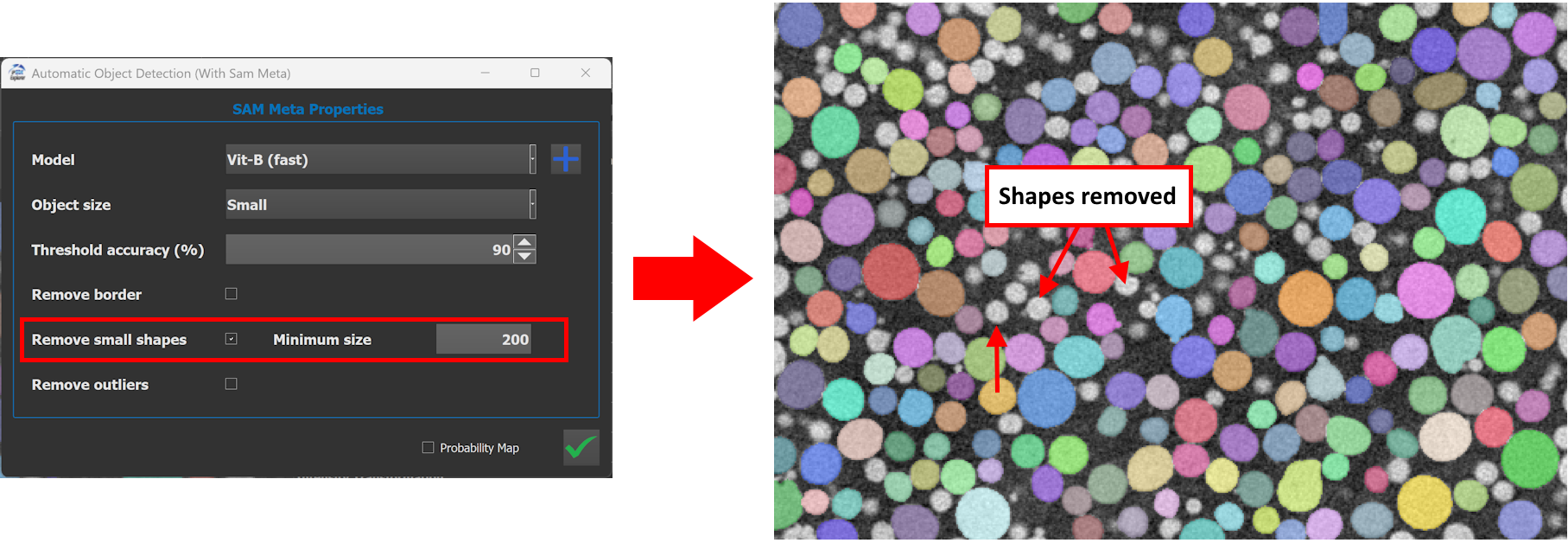
Any segmented label with an area smaller than the minimum size value will be deleted.
Typical use cases:
This option identifies and removes outliers, defined as objects that significantly deviate from the majority population.
Outliers detection relies on the label analysis method and is based on feature distances between objects, such as:

This parameter allows to filter the detected objects.
| Tolerance | Behavior |
|---|---|
| <10 (Low) | Aggressive filtering. Only very similar objects are kept. |
| ~10 (Medium)) | Balanced detection |
| >10 (High) | Conservative filtering. Most objects are preserved. |
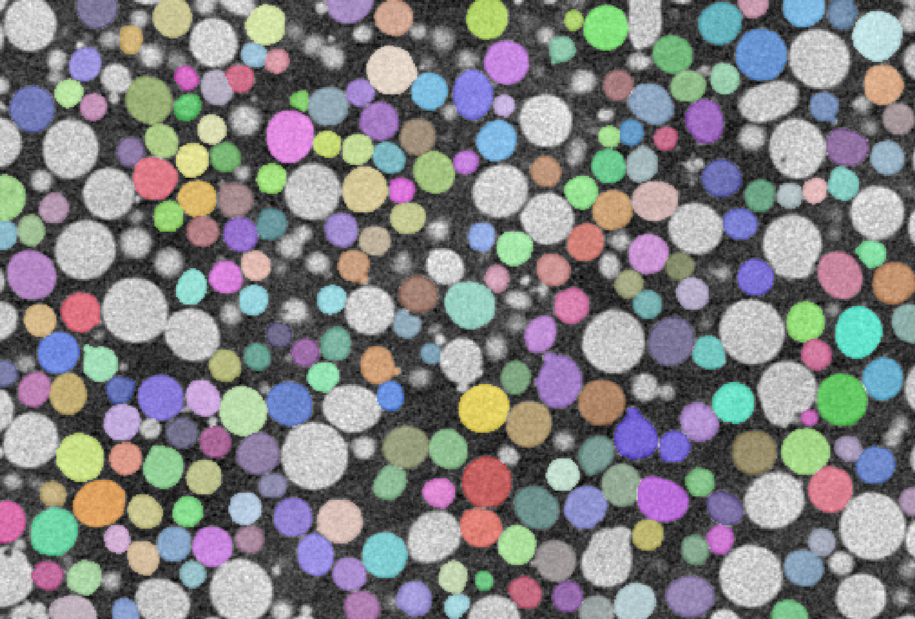
Here's examples of the differences between a high and a low tolerance :
| High Tolerance (15.0) | Low Tolerance (3.0) |
|---|---|

| 
|
This option is useful for:
When enabled, the module outputs an additional image representing the probability (or confidence) map generated by SAM.
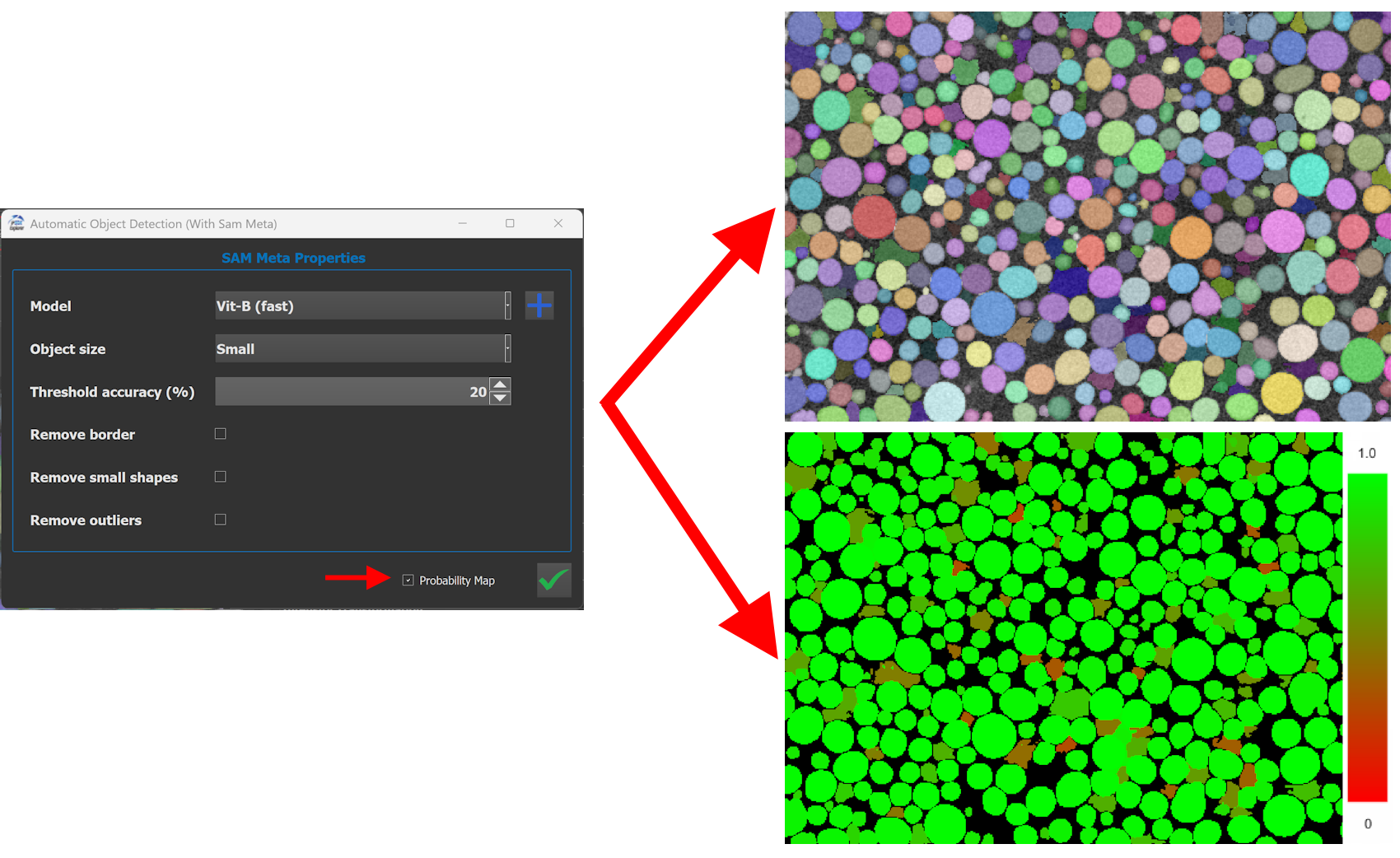
This map can be used to:
Clicking the Validate button starts the segmentation process.
The module uses the currently selected image in the software as input.

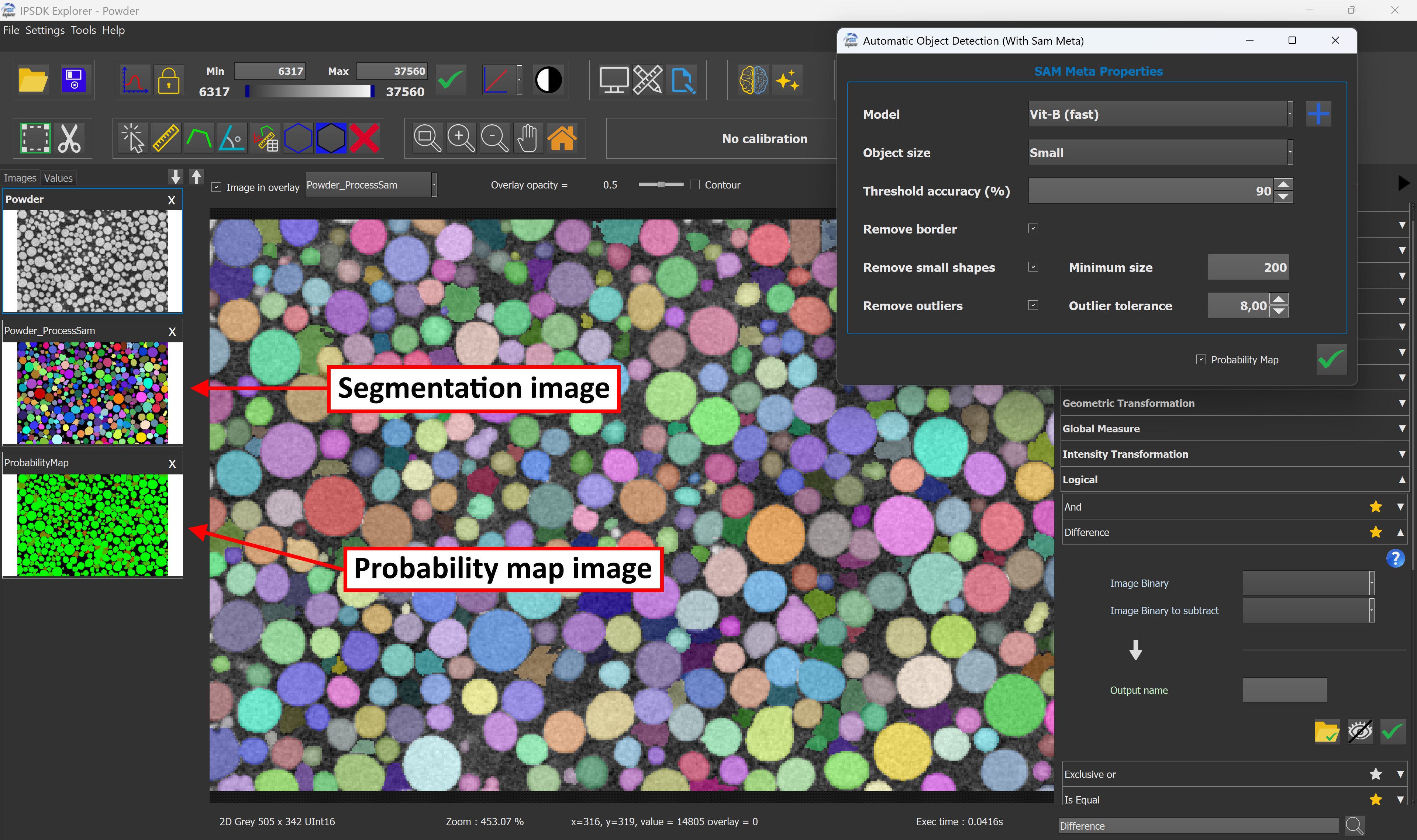
The module generates:
The results are automatically added to the current workspace.
It is possible to generate a python script through the interface of IPSDK Explorer, by right clicking the result image and using the Generate complete script button.
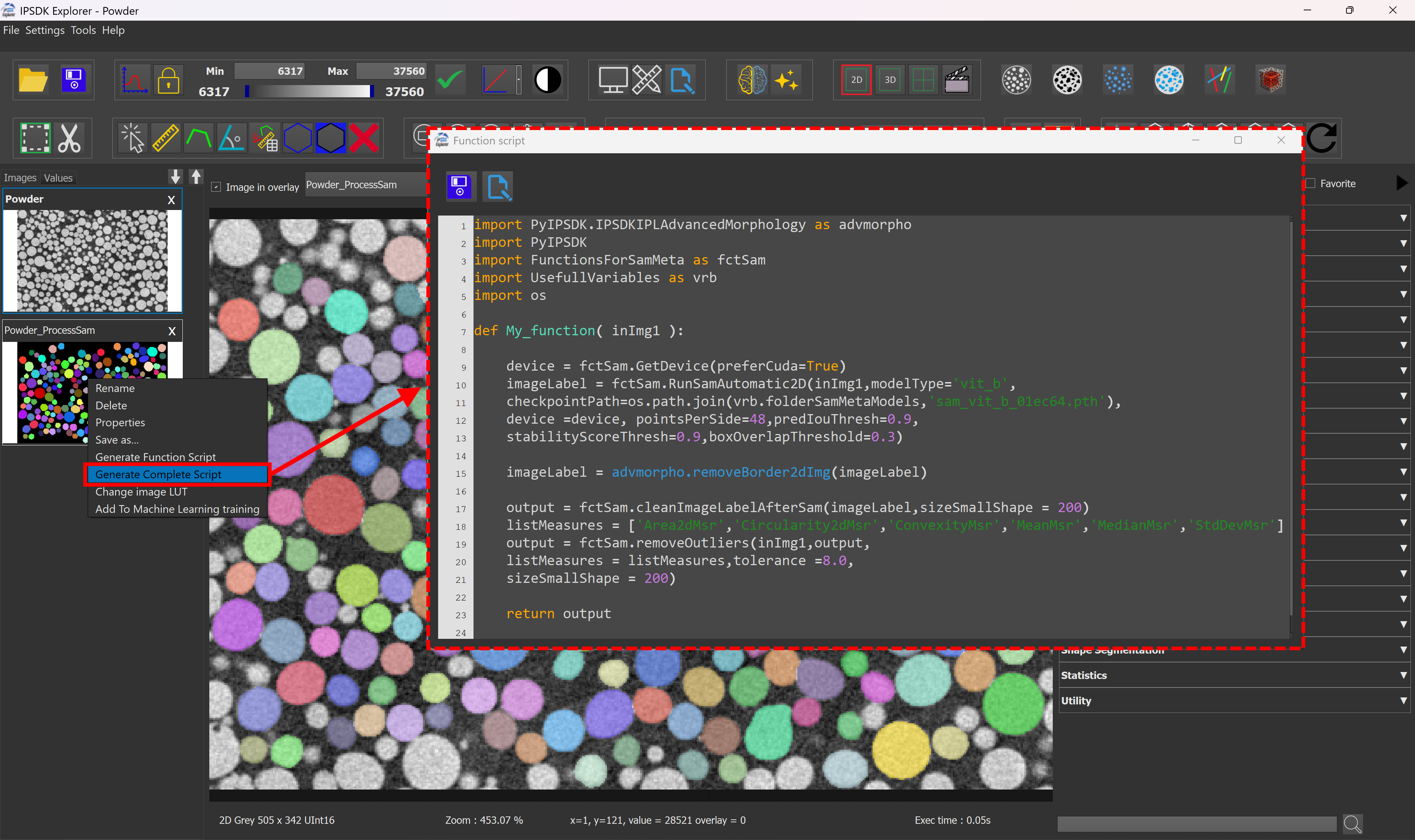
The following code creates a segmented label image using SAM Meta :
It is possible to adjust more precisely the parameters of the RunSamAutomatic2D function (see the script comments above for parameters details).
The second part of the script is used for post processing the raw segmentation result of SAM:
The set of measurements used for outliers detection can be modified by editing the listMeasures variable in the script.
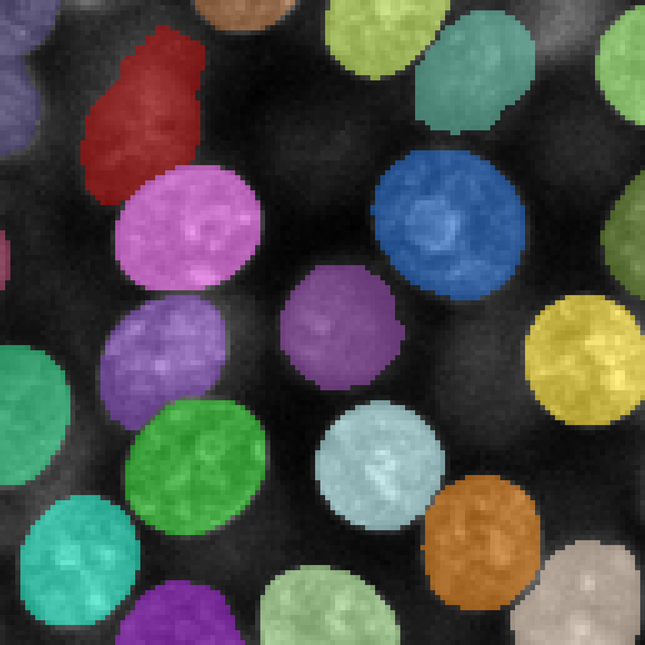
The following illustrates the differences between the raw SAM Meta output and the results produced by IPSDK :
| Input image | Native SAM result | IPSDK SAM result |
|---|---|---|

| 
| 
|
[1] https://ai.meta.com/research/sam2/
Sam paper : https://arxiv.org/pdf/2304.02643
 IPSDK by Reactiv'IP